
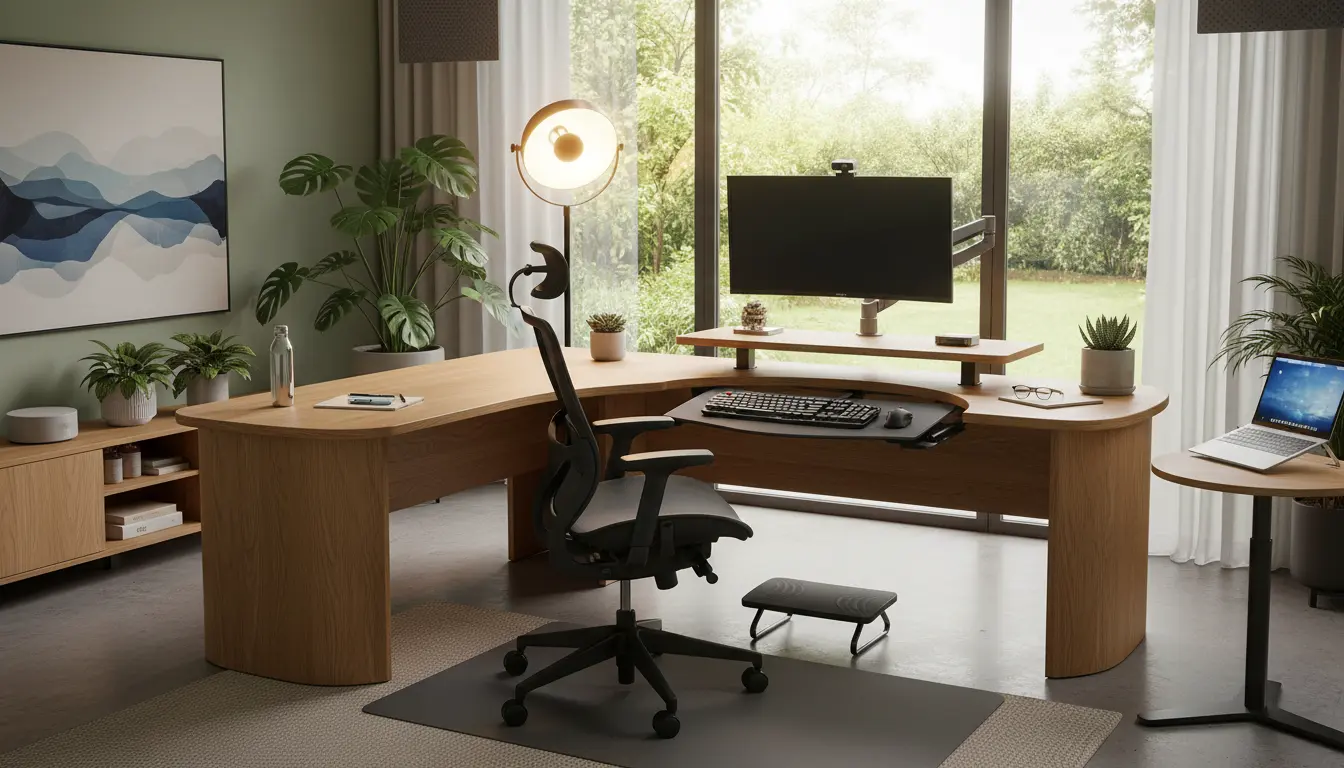
Home Office Ergonomics: Key Principles
Good home office ergonomics reduce discomfort and improve focus. Small adjustments to your chair, desk, monitor, and habits can prevent pain and fatigue.
This guide gives clear, practical steps you can apply in any home workspace, including low-cost options and simple routines.
Assess Your Current Setup for Home Office Ergonomics
Start with a quick assessment of your workspace. Note any pain, tightness, or posture changes after a typical workday.
Use these quick checks to find what needs attention: neck angle, wrist position, lower back support, and feet placement.
Checklist: Immediate Ergonomic Fixes
- Feet flat on the floor or on a footrest.
- Knees at about hip level or slightly lower.
- Elbows close to your sides and bent at 90–110 degrees.
- Wrists straight while typing and using the mouse.
- Top of monitor at or slightly below eye level.
- Screen about an arm’s length away.
Chair and Desk Adjustments for Home Office Ergonomics
Your chair and desk determine most ergonomic outcomes. Invest time in adjusting them before buying new equipment.
Adjusting Your Chair for Home Office Ergonomics
Sit with your back against the chair and adjust lumbar support to fill the small of your back. The seat depth should allow two to three fingers between the back of your knees and the seat edge.
If your chair lacks lumbar support, add a rolled towel or small cushion to maintain the curve of your lower spine.
Desk Height and Alternatives
Desk height should let your forearms rest parallel to the floor. If your desk is too high, lower your chair and use a footrest. If too low, raise the desk or use desk risers.
Consider a sit-stand desk or a converter to alternate positions. Standing for parts of the day reduces static loading and helps circulation.
Monitor, Keyboard, and Mouse Placement
Monitor position affects neck strain more than most workers realize. Place the center of the screen at eye level or slightly below.
Tips for Monitor Setup
- Use a monitor stand or stack books to lift screens.
- Angle the screen to reduce reflections and glare.
- Position dual monitors in a shallow V if you use both equally.
Keyboard and Mouse Best Practices
Keep the keyboard and mouse close to avoid reaching. Use a negative tilt keyboard tray or a slight wrist rest to keep wrists neutral.
Switch hands occasionally for simple tasks or use an ergonomic mouse to reduce strain on the thumb and forearm.
Lighting, Glare, and Visual Comfort
Poor lighting causes you to lean forward or squint, leading to neck and upper back strain. Aim for even, indirect light and reduce screen glare.
- Use daylight-balanced bulbs near 4000–5000K for clarity.
- Place monitors perpendicular to windows to avoid direct glare.
- Adjust screen brightness and text size for comfortable reading.
Movement and Breaks for Better Home Office Ergonomics
Sitting still is a major risk regardless of how well your setup is adjusted. Schedule micro-breaks and simple stretches every 30–60 minutes.
Use these practical habits to reduce fatigue:
- Micro-break: stand and move for 1–2 minutes every 30 minutes.
- Hourly: 5 minutes of light stretching and walking.
- Daily: 20–30 minutes of moderate exercise (walk, bike, or home workout).
Low-Cost Ergonomic Solutions
You don’t need expensive equipment to improve ergonomics. Simple household items can solve many problems immediately.
- Use a stack of books as a monitor riser.
- A firm cushion or towel provides lumbar support.
- Cardboard or wood can serve as a laptop stand to raise the screen.
- Use a separate keyboard and mouse with a laptop to keep wrists neutral.
Case Study: Simple Changes, Big Results
Maria, a freelance designer, had neck stiffness and wrist pain after long days on her laptop. She implemented three changes: raised her laptop on a stand, added an external keyboard and mouse, and set a standing reminder every 45 minutes.
Within two weeks she reported less neck pain and fewer headaches. Productivity improved because she felt less fatigued and could work longer without discomfort.
Putting Home Office Ergonomics Into Practice
Follow a step-by-step routine to make lasting changes. Assess, adjust, and add movement until the setup feels natural.
- Assess pain points and measure monitor, keyboard, and chair heights.
- Make basic adjustments with what you have (books, cushions, footrests).
- Introduce regular movement and set reminders or timers.
- Invest in targeted equipment later if needed (ergonomic chair, monitor arm, sit-stand desk).
Final Checklist for Home Office Ergonomics
- Feet supported, knees at hip level
- Lower back supported and chair adjusted
- Monitors at eye level, an arm’s length away
- Wrists neutral when typing and using the mouse
- Regular movement and daily exercise
Consistent, small changes to your home workspace add up. Apply these home office ergonomics tips one at a time and track what reduces discomfort. Over weeks, you should notice steady improvement in comfort and focus.